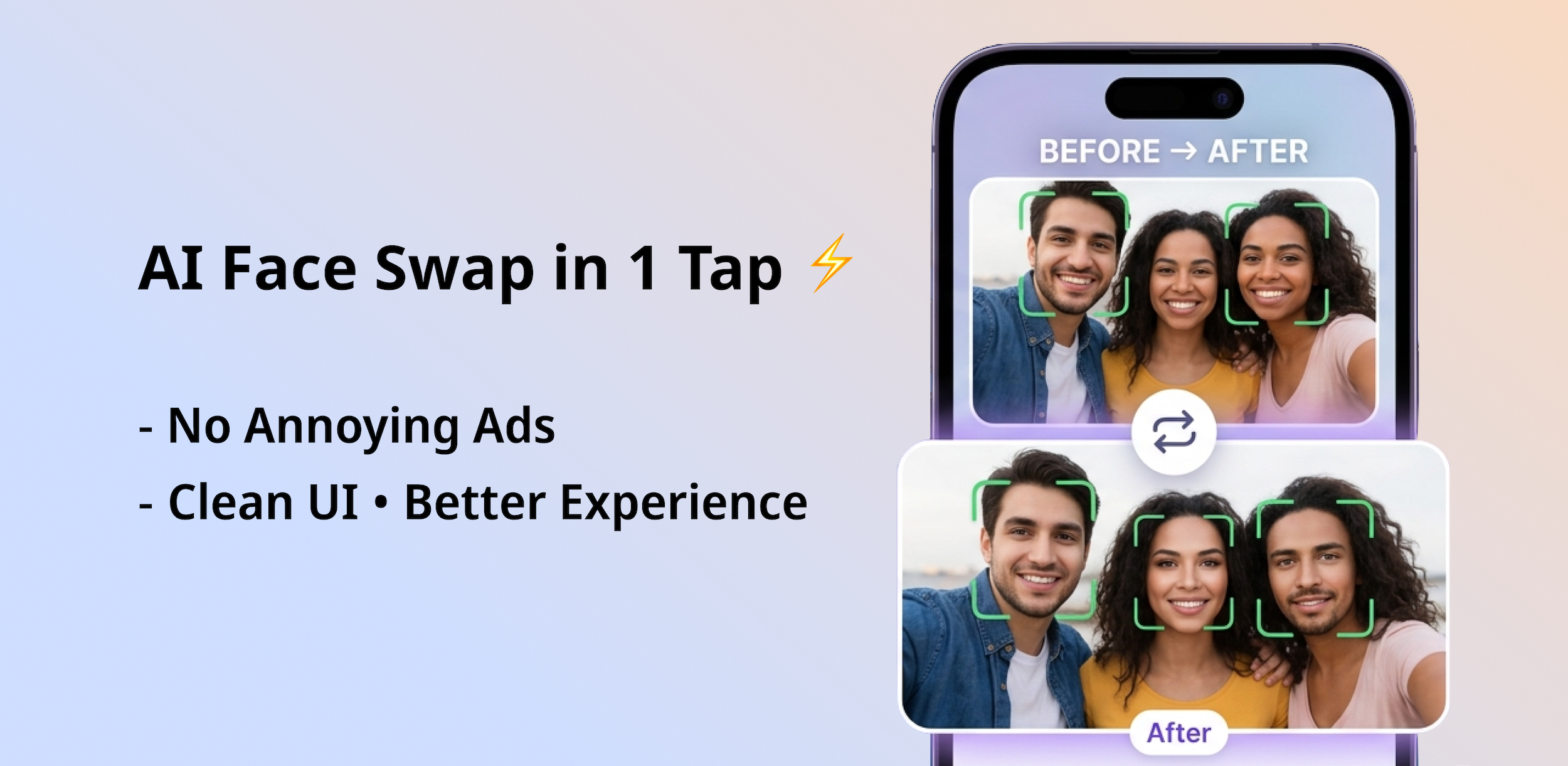
Most face swap apps share one frustrating problem: they watermark every result. You spend time editing a photo, and the final output has a brand logo stamped across the middle. That's not useful for sharing on social media, WhatsApp, or anywhere you actually want to use it.
FaceWap solves this completely. Every result you produce is clean — no watermark, no logo, no restrictions on sharing. Here's a step-by-step guide on exactly how to do a face swap without any watermark using FaceWap.
Before You Start: What You Need
- An Android device (FaceWap is available on Google Play)
- A clear photo with visible face(s)
- The FaceWap app installed (free download)
For the best results, use photos where the face is well-lit, facing forward, and not obstructed by sunglasses, masks, or shadows.
Step-by-Step: Single Face Swap
Download and Open FaceWap
Install FaceWap from Google Play. Open the app — you'll land directly on the main screen. No forced sign-up or account required to get started.
Select "Single Face Swap"
On the home screen, tap the Single Face Swap option. This mode is for swapping one face in a photo with another — perfect for portraits, selfies, or any photo with one main subject.
Upload Your Target Photo
Choose the photo you want to edit — this is the photo where the face will be replaced. Select it from your gallery. The app will automatically detect the face in the image.
Upload the Source Face
Now select the second photo — this is the face that will be placed into your target photo. Choose a clear, front-facing photo for the sharpest result.
Tap Swap and Wait a Few Seconds
Hit the Swap button. FaceWap's AI processes both images and generates the result in a few seconds. The swap blends skin tone, lighting, and facial features automatically.
Save or Share — No Watermark
Once the result is ready, tap Save to download it to your gallery, or share it directly. The saved image has no watermark — it's completely clean and ready to use.
Tip: For the most realistic results, use photos taken in similar lighting conditions. A face photo shot outdoors in bright light swapped into a dark indoor photo will look less natural than two photos with matching environments.
How to Do a Group Face Swap
Group face swap works the same way but handles multiple faces in one photo at once. Here's what's different:
Select "Group Face Swap"
From the home screen, choose the Group Face Swap mode. This mode is designed for photos with two or more people.
Upload the Group Photo
Select the group photo from your gallery. FaceWap detects all faces automatically and shows you which ones it found.
Assign Replacement Faces
For each detected face, upload the replacement face photo. You can swap all faces or just specific ones in the group.
Process and Save
Tap Swap. All selected faces are processed together. Save the result — again, completely watermark-free.
Tips for Better Face Swap Results
- Use high-resolution photos — blurry inputs produce blurry outputs
- Face the camera directly — profile angles reduce swap accuracy
- Match photo lighting — similar lighting between source and target photos looks more natural
- Avoid obstructions — sunglasses, masks, or hair covering the face reduces AI detection accuracy
- Use natural photos — heavily filtered source images may look inconsistent after swapping
Frequently Asked Questions
Is FaceWap really free?
Yes. FaceWap is free to download and use. Some advanced features use coins, which can be earned or purchased in-app. Basic face swaps are available without spending anything.
Does FaceWap save my photos?
No. FaceWap processes your photos locally and does not store your images on external servers.
Can I use FaceWap on iPhone?
FaceWap is currently available on Android via Google Play. iOS support is planned for a future update.
Why do other apps add watermarks?
Most apps use watermarks as a marketing strategy — every shared image promotes their brand. FaceWap chooses not to do this. Your output belongs to you.
Ready to Try It?
Download FaceWap free on Google Play and do your first watermark-free face swap in under a minute.
Download FaceWap Free